
Offering Affordable Digital Solutions
How to Enable 2FA Authentication on Your cPanel Account
Step 1
Login to your cpanel account
Step 2
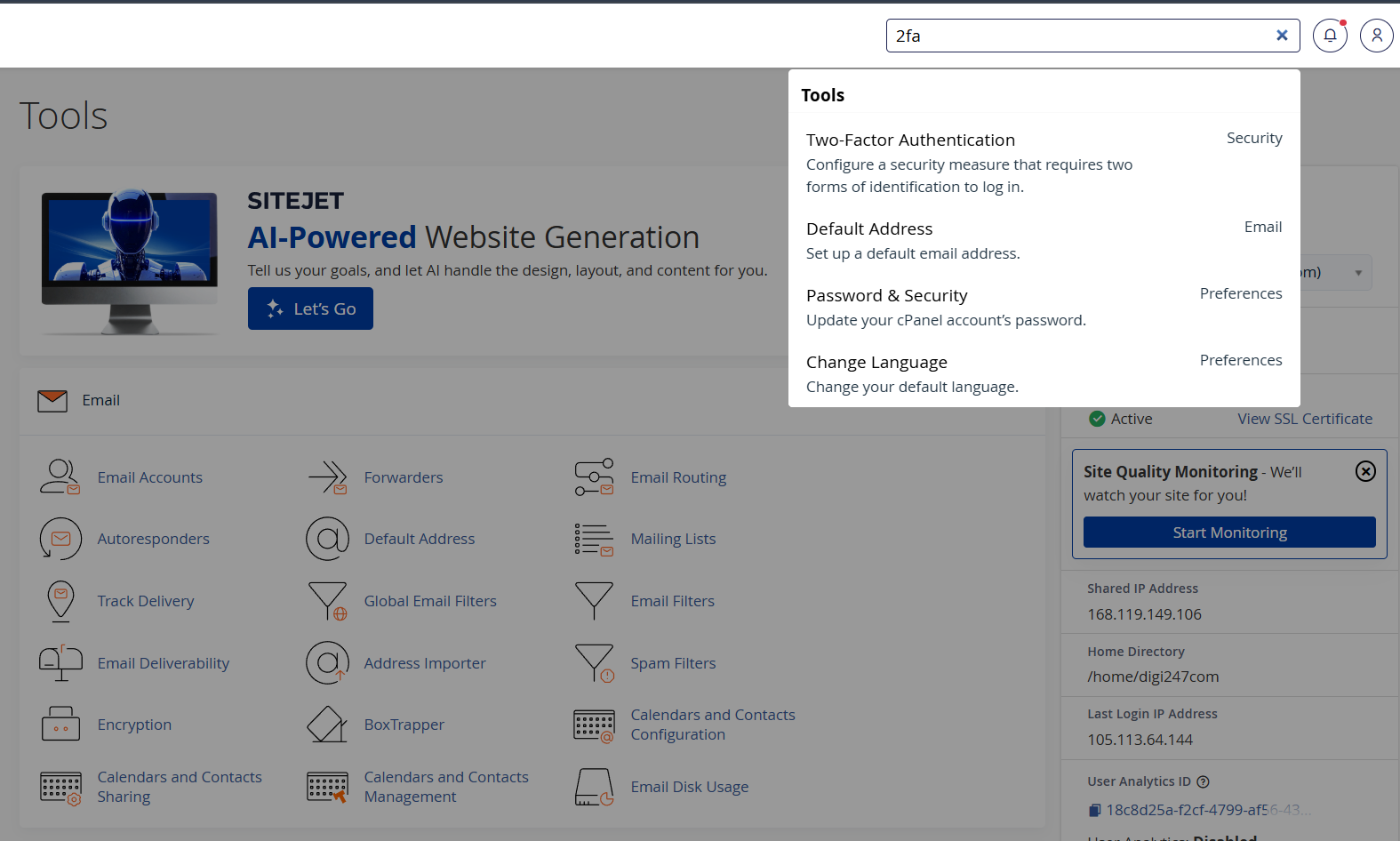
You would see an option for "Two-Factor Authentication" select it. You would then see a "Setup Two-Factor Authentication" button.
Step 3
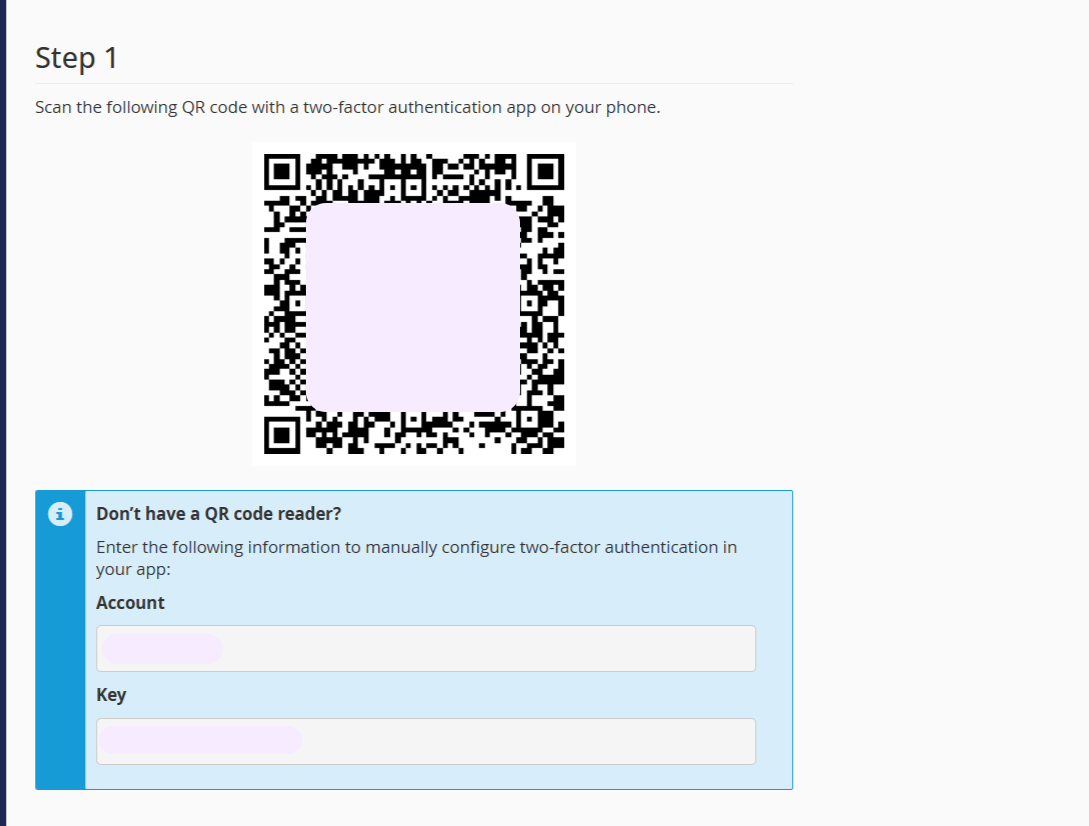
Use an authenticator app like Google Authenticator to scan the code but first you need to copy your key. You should keep the key in a safe place in case you lose access to your authenticator app.
Step 4
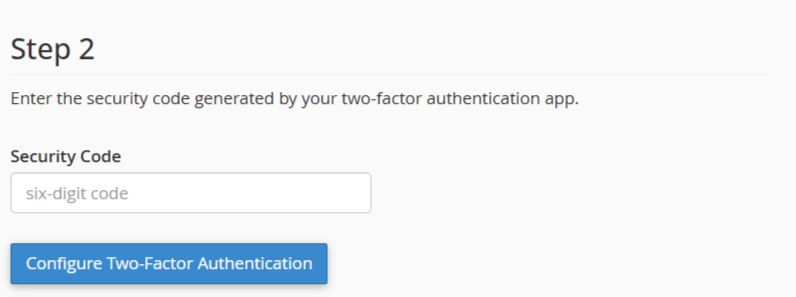
Once you scan with your authenticator app, your cpanel automatically gets connected to your authenticator app and a 6-digit code shows. Copy the 6-digit code and input here to complete the authentication process.
Step 5
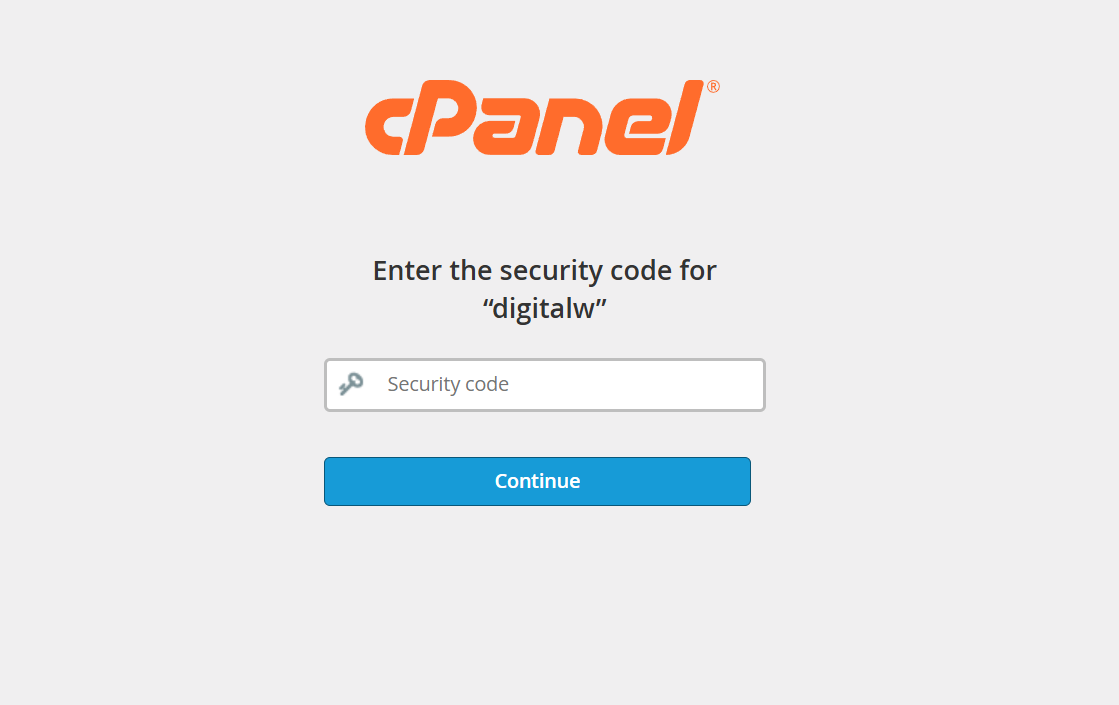
On your next login to your cPanel account, you will be prompted to input your 2FA code. Go to your authenticator app, and locate your cpanel name, and copy the code beside it. Input the code where required and you should be signed in.